Cloud & SecurityTutorial
How Cloudflare helps secure your website
By TrioFlare teamPublished Reviewed 4 min read
Select an image to open a larger version.
Cloudflare can check requests before they reach your website. The DNS proxy sends web traffic through Cloudflare. Security rules decide how to handle requests that match certain conditions. Rate limiting acts when matching requests arrive too often. Start by confirming which addresses visitors use and whether those addresses are proxied.
Start with DNS and the orange cloud
Open your site in the Cloudflare dashboard and go to DNS → Records. Find the record for the address people type, such as the main domain or www. An orange cloud with Proxied means HTTP and HTTPS requests for that hostname pass through Cloudflare. DNS only means Cloudflare answers the DNS lookup and web requests go to the server directly. Cloudflare proxy status guide
Make a note of the current records before editing. Check the main address, www and any separate hostname used for bookings or a shop. Only A, AAAA and CNAME records can be proxied, and only the records serving web traffic belong behind the web proxy. Leave email and verification records alone. Your hosting provider can tell you which hostname your mail service uses. Cloudflare proxy use cases
Check HTTPS on both parts of the connection. One part goes from the visitor to Cloudflare. The other goes from Cloudflare to the hosting server, also called the origin. Full (strict) encrypts the second connection and checks the server’s certificate. Confirm with your host that the certificate is valid for the hostname before switching to that mode. After any DNS or certificate change, open the actual pages customers use. Cloudflare Full (strict) guide
Use Security Rules for requests that match a condition
Open Security → Security rules. Cloudflare may group these controls under WAF, which stands for web application firewall. Managed rules use rulesets that Cloudflare maintains. Review the ruleset your plan includes. A custom rule is one you set up for your own site, with a condition and an action. Managed rules · Custom rules
For example, if you maintain a separate, browser-based staff sign-in, you can match that one path and use Managed Challenge when you have evidence it needs extra protection. This lets Cloudflare check the request before it passes. Test with a staff member first. Keep payment callbacks, APIs and tools that expect to talk to your website automatically outside that browser challenge. Leave the normal customer sign-in and password reset working.
Review Security Events after changing a rule. Look for the action, affected path and rule that matched. Compare the events with normal tasks. If a customer can no longer book or pay, disable the change you just made and retest the affected step. Cloudflare Security Events
Use a rate limit when requests arrive too often
In Security rules, choose Create rule → Rate limiting rule. A rate limit asks four questions. Which requests do you count? What counts as the same source? How many requests can arrive in the selected period? What should happen after the limit is reached? The available fields, periods and actions depend on your plan. Cloudflare’s rate limiting walkthrough
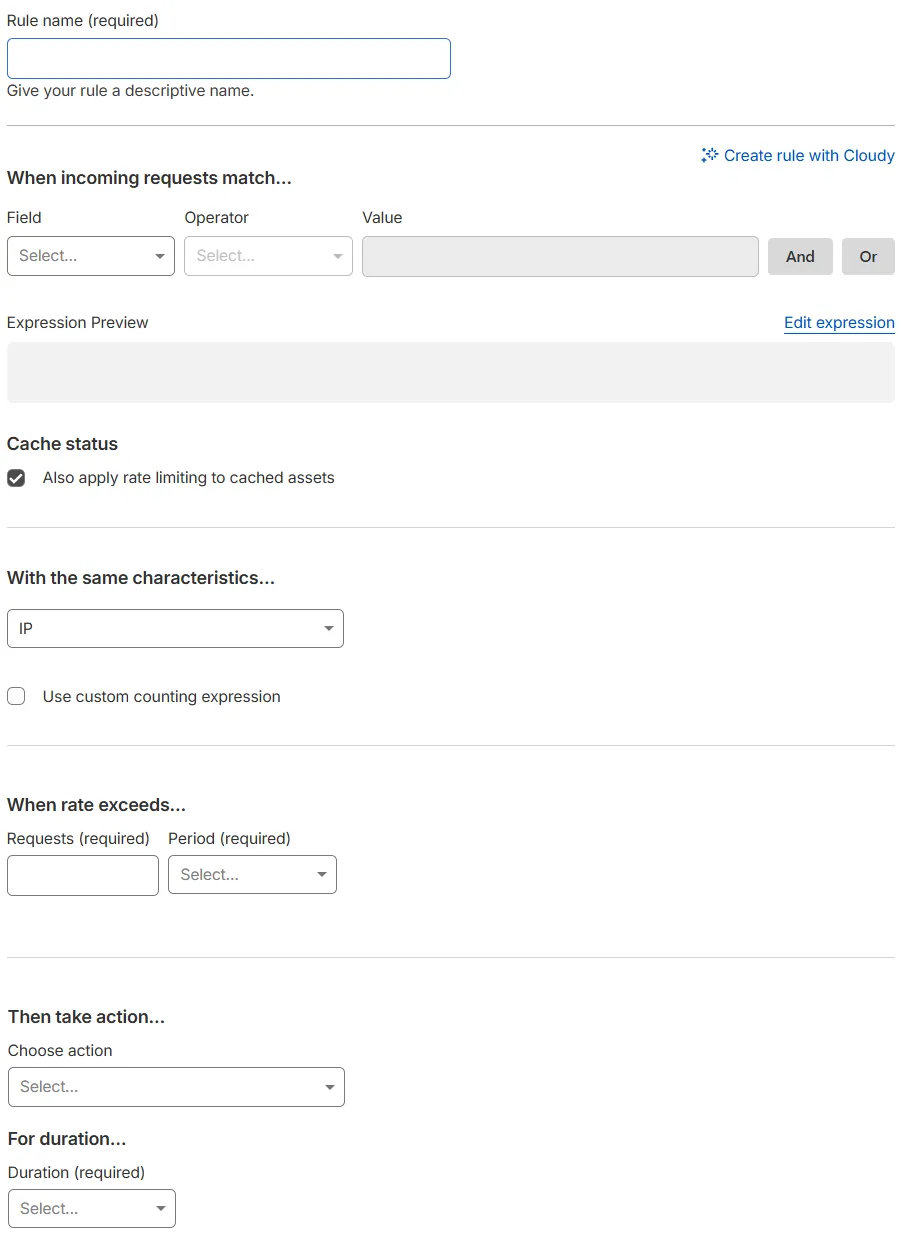
Try it with a WordPress sign-in page. Confirm the path staff use. On a default installation it is usually /wp-login.php. On a test site, draft a rule that matches that exact path. If your plan lets you match the request method, you can limit the match to sign-in submissions on that route. Ask your host or check your logs to understand how many requests normal visitors make. Then choose an available period and threshold above that activity. People at the same office or on a shared network can have the same public IP address, so leave room for that.
Save the rule as a draft while you review it. Once you enable it on the test site, check a successful sign-in, a retry after a typo and a password reset. Open the rest of the site as a customer too. Keep the change only after those tasks work. If you later apply it to your live site, give it a clear name so you know which rule to disable if it gets in the way.
Know which tool to use
| What you want to do | Which control to check |
|---|---|
| Send requests for the website through Cloudflare | Proxy status on the website’s DNS record |
| Apply an action when a request matches specific conditions | A custom security rule |
| Use checks Cloudflare maintains | Managed rules |
| Act when matching requests come in too quickly | A rate limiting rule |
Common questions
Does the orange cloud protect every subdomain?
Check each web hostname separately. The proxy applies to traffic routed through Cloudflare for that hostname. If your host can still receive direct requests, ask the host how to restrict direct web access without interrupting services the business needs. Cloudflare’s origin protection guidance
Is there one rate limit every WordPress site should use?
Use your site’s traffic as the baseline. An office, a public membership site and a shop can have very different patterns. Start with one path and leave room for ordinary retries. Review the result before adding more rules.
Should I enable every security feature at once?
Make one change at a time. Test a task customers rely on and write down which rule you changed. If you need help planning how DNS, HTTPS and security rules fit your hosting, see Cloud Solutions.
Try this on your own project
Checks reset when you reload this page.
Key takeaways
- Check which website hostnames are proxied before setting up security rules.
- Use a custom rule to match a request and a rate limit to act when matching requests arrive too often.
- Test normal sign-in, contact forms and checkout after rule changes.