Cloud & SecurityChecklist
Top 15 ways to secure a WordPress site
By TrioFlare teamPublished Reviewed 6 min read
Select an image to open a larger version.
If you only have time for three things, confirm you can restore a backup, update WordPress and switch on two-factor authentication for administrators. Those steps protect the files, software and sign-in accounts you depend on. The rest of the list helps you check what a developer or hosting provider may already be doing.
These steps use the dashboard for self-hosted WordPress. A managed host may handle some of them for you. Ask who owns each task so you know who to call when a check fails. WordPress maintains an official hardening guide if you want the technical details.
1. Take a backup you can restore
Confirm that the backup contains both the database and the files. The database holds content and settings. The files include uploads, plugins and themes. Check the latest backup date, who can access it and how long copies are kept. Restore one to a separate test site before depending on the process. For an online shop, agree how to recover orders placed after the backup was taken. WordPress backup guide
2. Keep WordPress, themes and plugins updated
Go to Dashboard → Updates and note what is pending. Apply routine updates on a staging site, a private copy of your site, if your host provides one. Open the pages customers use and test an enquiry or purchase afterwards. Make sure there is a named person to handle security updates promptly.
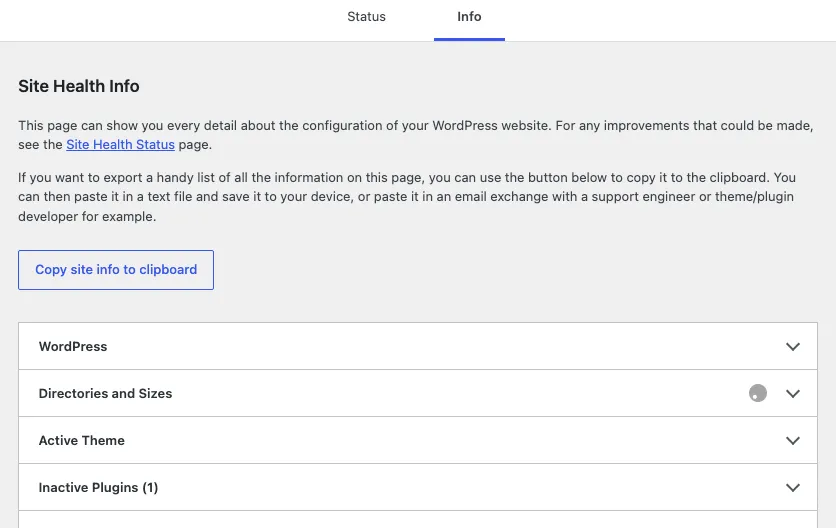
If you need an inventory first, go to Tools → Site Health → Info. Expand WordPress, Active Theme and the plugin sections that appear. You can then compare that list with what is pending under Updates. Site Health also has a Status tab for issues WordPress detects. Share only the information your support team needs. WordPress Site Health guide
3. Remove plugins and themes you no longer need
Under Plugins → Installed Plugins, ask what each plugin does. Check with the maintainer before removing anything that handles appointments, payments or a layout. Once you know it is unused, back up the site and remove it. Keep the active theme, any parent theme it needs and the fallback theme your host recommends.
4. Install software from sources you can verify
Use the WordPress Plugin Directory or the developer’s own distribution channel. Check that the maintainer still provides updates and supports your version of WordPress. If you inherited a paid plugin, find out who owns the licence and whether you can renew and update it under the business’s account.
5. Review who can administer the site
Go to Users → All Users and filter for administrators. Ask what each person still needs to do. Give editors the role they need to manage content. Keep administrator access for people who change site settings, install software or manage accounts. Give each person their own account so you can revoke access when they leave. WordPress roles and capabilities
Try it on your site. Open the administrator list and write down who controls each account. If the person who publishes your articles also has an administrator role, check whether Editor meets their needs. Confirm they can publish on staging before reducing access on the live site. Keep at least one working, business-controlled administrator account.
6. Set a unique password for every administrator
Use a password manager to create and store a different password for each account. A password reused on another site puts the WordPress login at risk if that other site leaks it. If several people use the same login today, create named accounts first and then retire the shared one.
7. Require a second sign-in step
Turn on two-factor authentication through your host, sign-in provider or a maintained WordPress plugin. Set it up for one administrator and try signing in from a private window. Store recovery codes somewhere the business can access if the phone is lost. Then enrol the rest of the administrators. WordPress Two-Factor plugin
8. Check whether the public can create accounts
If your site has no public accounts, review Settings → General → Membership and turn off public registration if the checkbox is enabled. Check the separate registration settings in any membership or shop plugin. If customers need accounts, test the normal sign-up flow and confirm they get only customer-level access.
9. Use HTTPS for the site and its admin area
Open the home page and sign-in page in a private browser window. Both should use https:// without a certificate warning. Check the booking or checkout page as well. If a link still lands on HTTP, ask your host to check the certificate and redirects before changing WordPress address settings yourself.
10. Protect the hosting and domain accounts
Turn on two-factor authentication at the hosting company and domain registrar. Confirm that the business can recover both accounts and receives renewal notices. Revoke logins and file access that former staff or suppliers no longer need. Ask your host to use an encrypted method such as SFTP for staff who still need file access.
11. Slow down repeated sign-in attempts
Check whether your host, firewall or security plugin already limits repeated login attempts. Start with one control and protect the actual sign-in page. Test a successful login and password reset afterwards. If staff share an internet connection, choose limits that account for several people signing in from the same network.
12. Turn off the dashboard’s code editors if unused
Ask whoever maintains the site whether anyone needs to edit plugin or theme code through WordPress. If your team deploys changes separately, ask the maintainer to disable the built-in editors. Keep your normal update process working. WordPress guidance on disabling file editing
13. Check what your site firewall protects
Ask whether a web application firewall, or WAF, checks requests before they reach WordPress. If one is active, find out which hostnames use it and who reviews the events. Keep WordPress updates in place. Test forms, sign-in and checkout whenever a rule changes. Cloudflare security rules guide
14. Send important alerts to a named person
Find out where your host or security plugin sends alerts about failed backups, new administrators and suspicious changes. Use an inbox the business controls. Separate informational messages from alerts someone needs to act on. Give that person the host’s contact details and a way to escalate the issue.
15. Keep a short plan for when something looks wrong
Write down who can access hosting, who can take the site into maintenance and where backups and logs live. If the site starts redirecting visitors or an unknown administrator appears, contact the host or maintainer promptly. Preserve the alerts and logs so they can investigate. Agree with them on when it is safe to restore service.
Common questions
Do I need a paid security plugin?
Start by checking what your host already supplies. You may already have backups, login protection or a firewall. Choose a plugin for a job that is missing, such as two-factor authentication or alerts your team can actually review.
How often should I look at this list?
Check it after a staff handover or a significant change to your site. Schedule regular checks for updates, recent backups and administrator access. A shop that takes orders every day may need more frequent backups than a site that changes only a few times a year.
Can I make all these changes in one evening?
Pick the backup, updates and account checks first. Make changes in small batches so you can tell which one affected sign-in, forms or checkout. If you need help reviewing hosting and recovery, see Cloud Solutions.
Try this on your own project
Checks reset when you reload this page.
Key takeaways
- Start with a backup of your files and database that you can restore.
- Give each person their own account and require two-factor authentication for administrators.
- Test sign-in, enquiries and checkout after security changes.