Web & App DevelopmentChecklist
Get your website ready for Black Friday and the year-end rush
By TrioFlare teamPublished Reviewed 6 min read
Select an image to open a larger version.
You have about two weeks. Black Friday falls on 27 November 2026 and Cyber Monday on 30 November, and the holiday shopping season runs on into December. Spend the time testing what customers actually do on your site, fix the problems that stop a sale or an enquiry, and then stop making big changes.
This is a practical checklist for small businesses selling or taking enquiries online. We checked the dates and sources on 11 November 2026.
The list is in rough order of priority. If you only manage the first four items, you will have covered the parts that lose sales most directly.
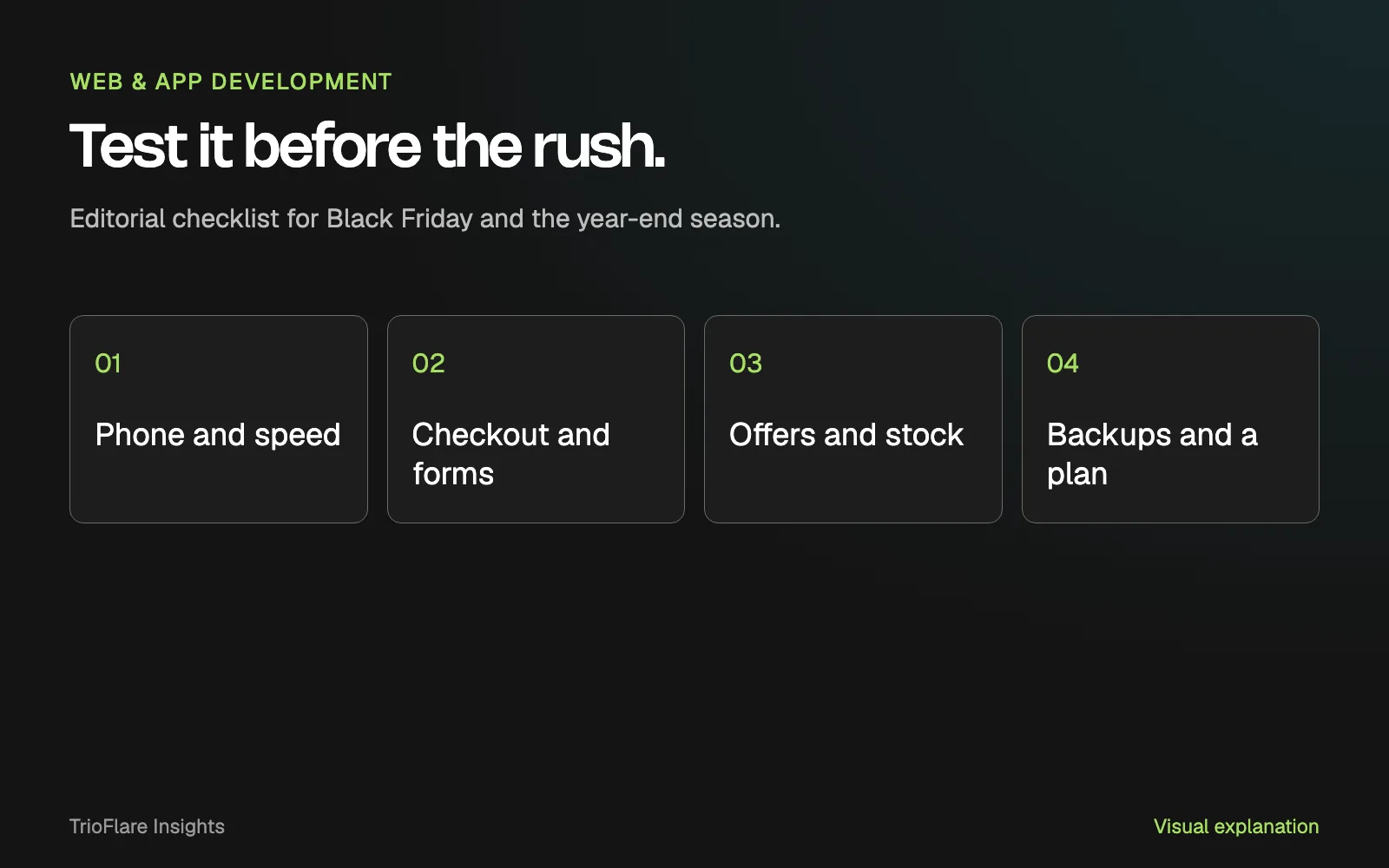
1. Try your site on a phone, like a customer would
Many customers will see your offer on a phone, often from a link in a message or a social post. So start there.
Open your site on your own phone, ideally on mobile data rather than office Wi-Fi. Find a product or service, add it to the cart or open the enquiry form, and get to the final step. Notice anything that is hard to tap, hidden behind the keyboard or slow to appear.
Then ask someone who does not know the site to try it while you watch.
2. Check page speed with PageSpeed Insights
Google’s free PageSpeed Insights tool gives a report on any page you enter. Test your home page, your main offer or category page and your checkout or contact page.
The report can show two kinds of results. Field data comes from real Chrome users over the previous 28 days, where Google has enough visits to report it. Lab data is a simulated test run at that moment, which is useful for finding what to fix. Google explains the difference in its PageSpeed Insights documentation.
What the three Core Web Vitals mean
Core Web Vitals are three measures Google uses for how a page feels to use. According to web.dev, a page does well when, for at least 75% of visits:
- Largest Contentful Paint (LCP) is 2.5 seconds or less. This is how long the main content, often a large image or heading, takes to appear.
- Interaction to Next Paint (INP) is 200 milliseconds or less. This is how quickly the page responds when someone taps or clicks.
- Cumulative Layout Shift (CLS) is 0.1 or less. This measures how much the page jumps around while loading.
Do not chase a perfect score in two weeks. Look for the one or two causes the report points to, such as an oversized banner image or a slow chat widget, and fix those. Then test the page again.
3. Test checkout and payment from start to finish
If you sell online, place a real order. Use a cheap item or a test product, pay with a real card or UPI if your setup allows it, and then refund it.
Check each step:
- the price, discount code and delivery charge are correct;
- the payment goes through and the order appears in your admin;
- stock goes down by the right amount;
- the customer confirmation email arrives, and does not land in spam;
- your team gets the new-order notification.
Try a failed payment too, if your payment provider offers a way to test one. A customer whose payment fails should see a clear message and be able to try again without losing their cart.
4. Send a test through every form
Enquiry forms can stop working without anyone noticing. A password changes, an email setting is updated, or a plugin update breaks something, and nobody notices until enquiries dry up.
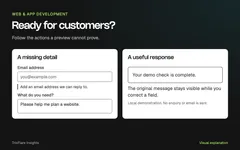
Send a test through every form on the site: contact, quote, booking and newsletter sign-up. Then open the inbox that should receive it. Check the message arrived, that the details are complete and that replying goes to the customer, not to the website.
Make sure someone is actually watching that inbox during the busy days.
5. Check prices, stock and offer dates
Go through every offer you plan to run. Check the start and end dates, the price shown on the product page and the price charged at checkout. They should match.
Remove or update anything left over from earlier sales: old banners, expired discount codes and “ends Sunday” messages from a past campaign. An expired offer that still shows on the site causes disappointed customers and awkward support messages.
If you have limited stock, check that the numbers on the website match what you actually have.
6. Make sure your hosting can cope, and you have a backup
Ask your developer or hosting provider two plain questions. Can our current plan handle more visitors than usual? When was the last backup, and has anyone tried restoring one?
A backup only helps if it is recent, stored somewhere separate from the live site and someone knows how to restore it. Take a fresh backup before your sale starts.
7. Freeze big changes close to the peak
Decide on a date after which nobody makes large changes to the site. That means no redesigns, new plugins, theme updates or checkout changes. Small content edits, like updating a banner, are usually fine.
The same applies to SEO. Google’s November 2026 core update began rolling out on 10 November 2026 and may take up to two weeks to complete. Search rankings can move during that time, so avoid big SEO changes mid-rollout. You can read more in our article on the Google November 2026 core update.
8. Update your Google Business Profile hours
If you have a shop or office, many customers will check your hours on Google Search or Maps before visiting. Add special hours for the holidays when you will open late, close early or shut for the day.
Google’s help page on setting special hours explains how. It also suggests confirming your hours for official holidays even if they are the same as usual, so customers know they are accurate.
9. Prepare a simple plan for when something breaks
Write a short note, one page at most, and share it with your team:
- who to contact if the site is down or checkout stops working, with phone numbers;
- how to reach your hosting provider and payment provider;
- where the latest backup is and who can restore it;
- a short message you can post on social media or send to customers if there is a problem.
Keep the note somewhere you can reach even if the website and your business email are not working.
Common questions
How early should I start?
As soon as you can. Two weeks is enough for testing and small fixes. It is not enough for a redesign or moving to a new platform, so save those for January.
My site is only for enquiries. Does this still apply?
Yes. Skip the checkout section, but test every form, check your phone number and WhatsApp links work, and update your opening hours. Enquiries during the holidays matter as much as sales.
Do I need a perfect PageSpeed score?
No. The score is a guide. What matters is that your main pages load quickly on a phone and respond when people tap. Fix the biggest problems the report shows and move on.
Should I change my website for Google’s core update?
Not in a rush. Let the update finish, then look at your search results over the following weeks before deciding on any changes.
A next step
Print the checklist below, tick off each item as you go and note anything that did not work. If you find problems you cannot fix yourself, or you want someone to test the whole customer journey with you, see our website development service or get in touch.
Try this on your own project
Checks reset when you reload this page.
Key takeaways
- Test what customers actually do, on a phone, before the busy days.
- Fix the few problems that stop a sale or an enquiry first.
- Stop big changes close to the peak, and know who to call if something breaks.